Using QuickBooks Online tax calculations in Autotask
 Security and navigation
PERMISSIONS Administrator and security levels with the Admin > Activations setting enabled. Refer to Admin security settings.
NAVIGATION Left Navigation Menu > Admin > Admin Categories > Features & Settings > Finance, Accounting, & Invoicing > Accounting Package Preferences
To open this article from the Autotask UI, go to Left Navigation Menu > Admin > Features & Settings > Finance, Accounting & Invoicing > Accounting Package Preferences and click the Help icon (?) in the upper-right corner.
This article explains how Autotask uses tax calculations from QuickBooks Online Automated Sales Tax (AST) to keep invoice totals consistent across the following systems:
- Autotask
- QuickBooks Online (QBO)
- ConnectBooster
With this functionality, Autotask does not need to independently calculate final tax amounts for QBO invoices. Instead, QBO remains the single source of truth for taxes, and those values are pushed back to Autotask.
Problem this solves
Previously, tenants using Autotask, QuickBooks Online, and ConnectBooster could see different invoice totals in each system:
- Autotask calculated taxes based on its own configuration.
- QBO calculated taxes using Automated Sales Tax (AST).
- ConnectBooster pulled invoice information from both Autotask and the accounting system.
Because Autotask and QBO did not always calculate the same tax amounts, the totals sometimes disagreed. When this happened:
- ConnectBooster could not determine which invoice total was correct.
- Staff often had to investigate and manually reconcile invoices.
- There was increased risk of incorrect amounts being presented or collected from customers.
The new behavior removes this ambiguity by letting QBO own the tax calculation and sending those exact values back to Autotask.
Configuration and requirements
Prerequisites
- Autotask is integrated with QuickBooks Online.
- QuickBooks Online is configured to use Automated Sales Tax (AST).
- You are using or plan to use ConnectBooster (optional, but recommended to get the full benefit of consistent invoice totals).
Smart Accounting Hub Code field
- This code is required for the Smart Accounting Hub to correctly map and apply QBO tax behavior for the tenant.
- It identifies the configuration that Smart Accounting Hub uses when sending invoices to QBO and receiving tax results back.
- If the field is blank or incorrect, QBO‑driven tax calculations may not function as expected.
- The code is provided or confirmed during Smart Accounting Hub onboarding. It should not be changed unless directed by Support or Implementation.
Refer to Accounting Package Preferences for more information.
Accessing the Smart Accounting Hub QBO tax settings code
-
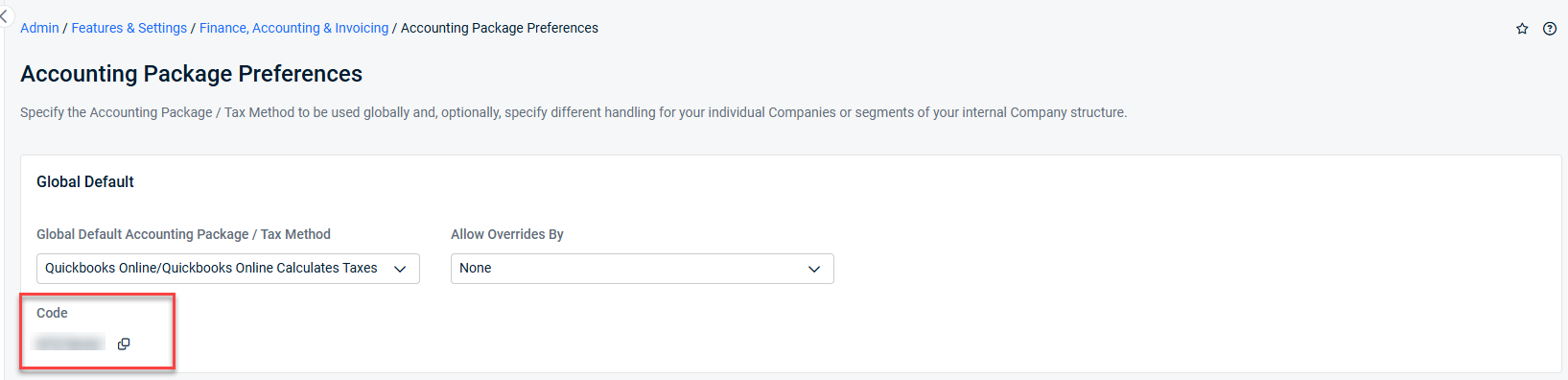
In Autotask, go to Left Navigation Menu > Admin > Features & Settings > Finance, Accounting & Invoicing > Accounting Package Preferences.
-
In the Global Default section, select Quickbooks Online/Quickbooks Online Calculates Taxes as the Global Default Accounting Package / Tax Method.
-
Copy the Code that is provided.
-
Enter the copied value into your Smart Accounting Hub instance.
Refer to Smart Accounting Hub for QuickBooks Online (QBO) invoice settings for more information.
How the flow works
Step 1: Create the invoice in Autotask PSA
You create and approve billing items in Autotask as you normally do. When the invoice is generated:
- Autotask creates the invoice and places it in a Ready for Transfer state.
- The invoice is not finalized and no final PDF is released at this stage.
- Autotask determines taxability only (taxable vs. non‑taxable) for each billing item.
- Autotask does not calculate or store final tax amounts for the invoice.
- At this point, the invoice is pending tax calculation by QuickBooks Online.
Step 2: Invoice processing and tax calculation in QuickBooks Online
Once the invoice is ready for transfer, Smart Accounting Hub for QBO processes it:
- The integration sends the invoice and its billing items to QuickBooks Online.
- Each line is marked as taxable or non‑taxable based on the Autotask billing item.
- QuickBooks Online Automated Sales Tax (AST) calculates tax for the invoice.
How QBO handles invoice tax
- In QuickBooks Online, you can mark each line as taxable or non‑taxable via the Tax checkbox or item setup, but all taxable lines on the invoice are aggregated and one overall tax amount is calculated for the transaction.
- The platform supports multiple combined rates (state, county, city, local, etc.), yet they still roll up into a single tax computation and total on the invoice rather than distinct tax amounts per line.
- QBO does not return per‑line tax rates, per‑line tax amounts, or per‑line taxable subtotals. Because this data is not available from QBO, it cannot be stored or reconstructed accurately in Autotask.
Step 3: Tax values returned to Autotask
After QBO completes tax calculation:
- Smart Accounting Hub retrieves the total tax amount calculated by QBO.
- That invoice‑level tax total is sent back to Autotask.
- Autotask updates the invoice using the QBO‑calculated total tax.
- The invoice status is updated to indicate it is ready to complete.
- Autotask generates and releases the final invoice PDF.
- The finalized invoice now reflects tax values that match QuickBooks Online.
Step 4: Using the finalized invoice
Once finalized:
- The invoice can be sent to customers from Autotask.
- Downstream systems (for example, ConnectBooster) pick up the invoice as finalized.
- Invoice totals and tax amounts remain aligned with QuickBooks Online.
Key limitations and design considerations
No per‑line‑item tax in Autotask
- Because QuickBooks Online does not expose per‑line tax details via the integration, Autotask stores only the total tax amount returned by QBO.
- Any per‑line tax values that might be displayed or inferred are not authoritative and should not be used for tax compliance or statutory reporting.
- Dividing the total tax across line items would be approximate and potentially inaccurate, so this is not supported.
Autotask’s tax display is designed to keep invoice totals and the invoice‑level tax value in sync with QBO, not to replicate QBO’s internal, detailed tax breakdown.
Quebec (Canada) tax handling with Autotask and QuickBooks Online
Limitations
-
Multiple Autotask tax codes cannot be applied to a single invoice line item.
-
Separate GST and QST tax codes cannot be sent from Autotask to QBO per line item, as the QBO API accepts only one tax code per line.
Autotask applies one tax code per invoice line item and sends that tax code to QBO. While Autotask does not send multiple tax codes per line, QBO tax codes can include multiple tax rates, allowing GST and QST to be calculated and reported correctly.
How Quebec tax compliance works
Most Quebec customers use the following setup:
In QuickBooks Online
-
Create a tax code (for example, GST/QST QC – 9.975) that includes:
-
GST on sales (5%)
-
QST on sales (9.975%)
-
-
QBO displays GST and QST as separate tax lines on invoices, meeting Revenu Québec requirements.
In Autotask
-
Create a single tax code with the exact same name as the QBO tax code.
-
Apply that tax code to each invoice line item.
-
Autotask sends one tax code per line, and QBO expands it into separate GST and QST charges.
This configuration is commonly used by Quebec and other Canadian customers and supports compliant tax reporting.
UBL / PEPPOL and European e‑invoicing
- QuickBooks Online does not natively support UBL 2.x or UBL 3 (EN 16931) invoice formats or PEPPOL BIS e‑invoicing.
- Line‑item‑level tax data required by UBL‑based standards is not available.
- For European customers, QBO’s built‑in e‑invoicing features are country‑specific and primarily focused on local government portals.
- PEPPOL or UBL‑compliant e‑invoicing typically requires a third‑party provider that connects to QuickBooks Online and performs the conversion externally.
- Smart Accounting Hub does not add or emulate UBL‑compliant or PEPPOL‑compliant tax behavior.
Benefits
- Consistent invoice totals across systems: Autotask, QuickBooks Online, and ConnectBooster all align on the same tax and total amounts.
- Reduced manual reconciliation: Your team spends less time tracking down why invoice totals do not match and adjusting invoices.
- Greater confidence for payment collection: ConnectBooster can reliably use the Autotask/QBO invoice total, minimizing customer confusion and disputes.
- Clearer invoice lifecycle: Invoice statuses make it easier to see exactly where an invoice is in the process.
Frequently asked questions
Does Autotask still calculate taxes on its own?
Autotask may still perform an internal tax calculation based on its configuration. However, for QuickBooks Online invoices using Automated Sales Tax, the final tax values come from QBO and are written back to Autotask. QBO is the source of truth for tax amounts.
What happens if QuickBooks Online is temporarily unavailable?
If QBO is unavailable, an invoice that is waiting on QBO tax data remains in a pending status. Autotask does not finalize the invoice or generate the final PDF until QBO responds and tax details are returned.
Does this change anything for customers who do not use QuickBooks Online?
No. This enhancement specifically applies to the QuickBooks Online integration and the use of Automated Sales Tax. Other accounting integrations continue to work as they did before.
Will this change how ConnectBooster pulls invoices?
ConnectBooster continues to pull invoices from Autotask and your accounting system. The difference is that it now sees consistent tax and total amounts between Autotask and QBO, which reduces conflicts and confusion.


