Troubleshooting Smart Accounting Hub sync errors
When syncing invoices, purchase orders, or expense reports between Autotask and QuickBooks Online (QBO) using Smart Accounting Hub (SAH), you may encounter errors that prevent a successful sync. This article describes the most common errors and the steps to resolve them.
 Error 2020 - Required Parameter Name Is Missing
Error 2020 - Required Parameter Name Is Missing
Error message:
Error code 2020. Required parameter Name is missing in the request.
Cause:
This error occurs when a labor or time entry in Autotask is missing an assigned Work Type. When Smart Accounting Hub attempts to map the billing item to a QuickBooks Online item, it cannot create the item because the Name field is empty.
Resolution:
- In Autotask, locate the invoice that failed to sync.
- Identify the time entries or labor items on the invoice that are missing a Work Type.
- Void the invoice in Autotask.
- Unpost the invoice, then edit the affected time entries to assign a valid Work Type.
- Recreate the invoice in Autotask.
- Return to Smart Accounting Hub and re-sync the invoice.
- Verify the sync was successful by checking View Logs.
Error 2050 - Item Name Exceeds Maximum Length
Error 2050 - Item Name Exceeds Maximum Length
Error message:
Error code 2050. String length specified does not match the supported length. Min:0 Max:100 supported.
Cause:
QuickBooks Online limits item names to 100 characters. If a service or product name in Autotask exceeds this limit, the sync will fail when Smart Accounting Hub attempts to create the corresponding item in QBO.
Resolution:
- Open Smart Accounting Hub and navigate to Item Settings for Services/Bundles.
- Change the setting from Recurring Services - Service Code to Service Code.
- Click Save to apply the change.
- Navigate to Invoices and locate the invoice with the sync error.
- Select the checkbox next to the invoice and click Clear Sync Status.
- Select the checkbox again and click Sync.
- Go to View Logs to confirm the invoice synced successfully.
Error 2210 - Invalid Email Address Format
Error 2210 - Invalid Email Address Format
Error message:
Error code 2210. Email Address does not conform to the syntax rules of RFC 822.
Cause:
This error occurs when Smart Accounting Hub attempts to create a new QuickBooks Online customer using a contact from Autotask, but the primary contact on the Autotask company record has an invalid or malformed email address (for example, @-.com).
Resolution:
- In Autotask, navigate to the company record associated with the failed invoice.
- Update the Primary Contact to an active contact with a valid email address.
- Remove or deactivate the contact with the invalid email address.
- Return to Smart Accounting Hub and navigate to Invoices.
- Search for the invoice ID that failed to sync.
- Select the checkbox next to the invoice and click Clear Sync Status to remove the error.
- Select the checkbox again and click Sync.
- Verify the sync completed successfully.
Error 2500 - Invalid Reference ID (Account Not Found)
Error 2500 - Invalid Reference ID (Account Not Found)
Error message:
Error code 2500. Invalid Reference Id : Accounts element id [ID] not found.
Cause:
This error occurs when Smart Accounting Hub references a QuickBooks Online income account that no longer exists or has been deleted. This typically happens when a new QBO item is being created but no income account is mapped in the SAH settings.
Resolution:
- Open Smart Accounting Hub and navigate to Settings.
- Locate the Invoice settings section.
- Add or update the Income Account mapping to a valid, active account in QuickBooks Online.
- Save your changes.
- Return to Invoices, locate the failed invoice, clear its sync status, and re-sync.
Error 6240 - Duplicate Name Exists
Error 6240 - Duplicate Name Exists
Error message:
Error code 6240. The name supplied already exists.
Cause 1:
This error occurs when Smart Accounting Hub attempts to create a new item, customer, or other record in QuickBooks Online, but a record with the same name already exists, including records that have been made inactive.
Resolution:
- In Autotask, check whether the company, service, or product involved in the sync has been set to Inactive status.
- In QuickBooks Online, check whether the corresponding customer, item, vendor, or employee has been made inactive or deleted.
- In Smart Accounting Hub, navigate to Company Mappings and verify that Autotask companies are not mapped to inactive or deleted QBO companies.
- Un-map any companies that are mapped to inactive or deleted QBO records.
- Re-map the companies in Company Mappings to active QBO records.
- Re-sync the invoice and confirm success.
Cause 2:
This error can also be caused by an invalid character/s in the name of the billing item.
Resolution:
Ensure your company name in QuickBooks Online only contains accepted characters.
-
In QuickBooks Online, go to Settings. and select Account and settings.
-
Select Company.
-
Select Edit in the Company name section to edit the entry.
-
Remove any invalid special characters.
-
Select Save, then select Done.
Accepted characters:
-
Alpha-numeric: A-Z, a-z, 0-9
-
Comma: ,
-
Dot or period: .
-
Question mark: ?
-
At symbol: @
-
Ampersand: &
-
Exclamation point: !
-
Number/pound sign: #
-
Single quote: '
-
Tilde: ~
-
Asterisk: *
-
Space: ( )
-
Underscore: _
-
Minus sign/hyphen: -
-
Semi-colon: ;
-
Plus sign: +
Error 610 - Inactive or Deleted Record
Error 610 - Inactive or Deleted Record
Cause:
This error occurs when a record referenced during the sync — such as an account, customer, item, vendor, or employee — has been made inactive or deleted in QuickBooks Online.
Resolution:
- In Autotask and QuickBooks Online, identify any companies, services, or products that have been set to Inactive or deleted status.
- In Smart Accounting Hub, navigate to Company Mappings and ensure no Autotask companies are mapped to inactive or deleted QBO records.
- Un-map any affected companies.
- Re-map the companies to active QBO records.
- Re-sync the invoice and verify success.
Error 6560 - No Autotask Billing Code Found
Error 6560 - No Autotask Billing Code Found
Error message:
No Autotask billing code found for id -1 or No Autotask billing code found for id -2
Cause:
This error indicates that a billing item on the invoice does not have a valid billing code assigned in Autotask, which prevents Smart Accounting Hub from mapping it to a QuickBooks Online item.
Resolution:
Contact Kaseya Support if this error persists after reviewing your billing code assignments in Autotask. Ensure all billing items on the invoice have valid, active billing codes before attempting to re-sync.
CustomerRef Is Required Error
CustomerRef Is Required Error
Error message:
CustomerRef is required. CustomerRef is missing in the request.
Cause:
This error is caused by a mismatch between the customer name in Autotask and the corresponding customer name in QuickBooks Online. Smart Accounting Hub cannot locate the QBO customer record to attach to the invoice.
Resolution:
- In Autotask, verify the company name for the customer associated with the invoice.
- In QuickBooks Online, confirm the customer's display name matches the Autotask company name exactly.
- Update either record so the names match.
- In Smart Accounting Hub, navigate to Invoices, locate the failed invoice, and clear its sync status.
- Re-sync the invoice and confirm it completes successfully.
Multiple Tax Rates Per Line Error
Multiple Tax Rates Per Line Error
Error message:
Multiple taxes are present on this line. Multiple tax rates per line are not supported. Instead, create a single aggregate tax rate in both Autotask and QuickBooks Online for this combination of taxes.
Cause:
QuickBooks Online does not support multiple tax rates on a single invoice line. This error occurs when an Autotask invoice line has more than one tax applied (for example, GST on sales and GST/PST BC).
Resolution:
- In both Autotask and QuickBooks Online, create a single aggregate tax rate that combines the individual tax rates applied to the affected line (for example, a combined GST + PST rate).
- Update the invoice in Autotask to use the new aggregate tax rate.
- Clear the sync status for the invoice in Smart Accounting Hub and re-sync.
The aggregate tax rate must be created and named consistently in both Autotask and QuickBooks Online for the mapping to work correctly.
General Troubleshooting Steps
If you encounter a sync error not listed above, try the following general steps:
-
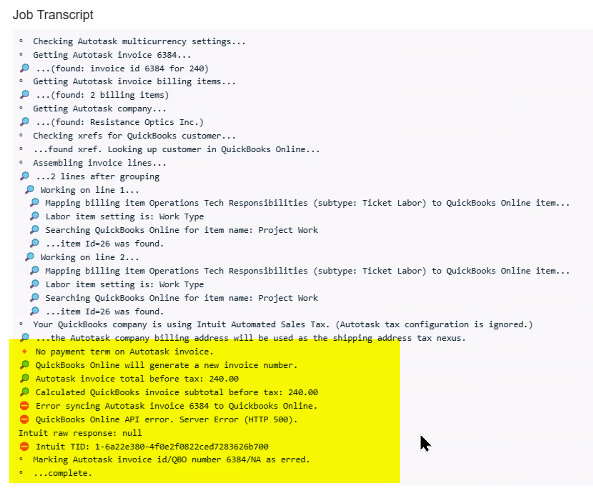
Review the error message in Smart Accounting Hub > View Logs for details about what failed. Refer to View Logs.
-
Verify that all companies, items, services, and accounts referenced in the invoice are active in both Autotask and QuickBooks Online.
-
Check Company Mappings in Smart Accounting Hub to ensure all mappings point to active QBO records.
-
Clear the sync status for the affected invoice and attempt to re-sync.
-
If the issue persists, contact Kaseya Support with the invoice ID and the full error message from View Logs.


